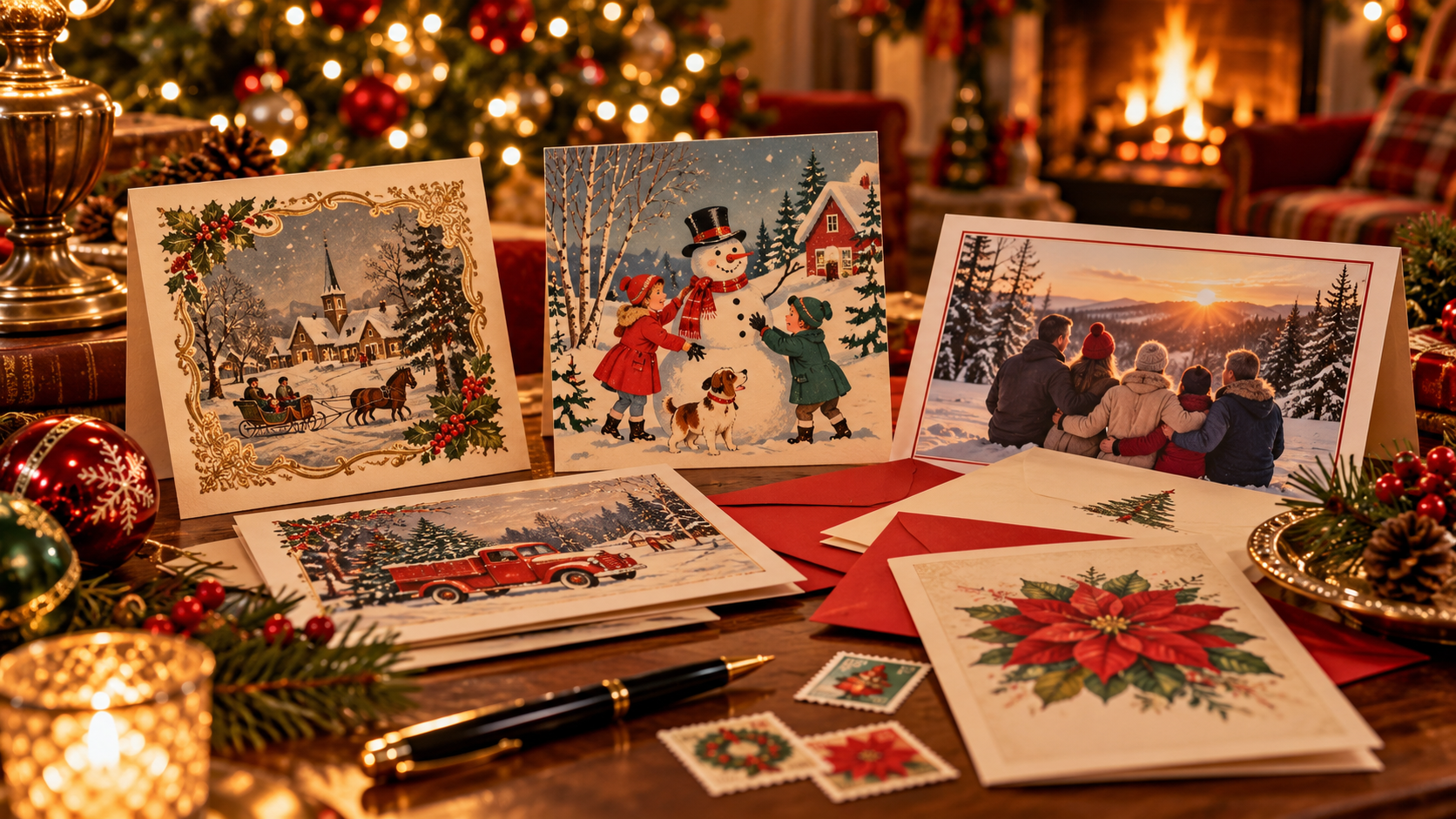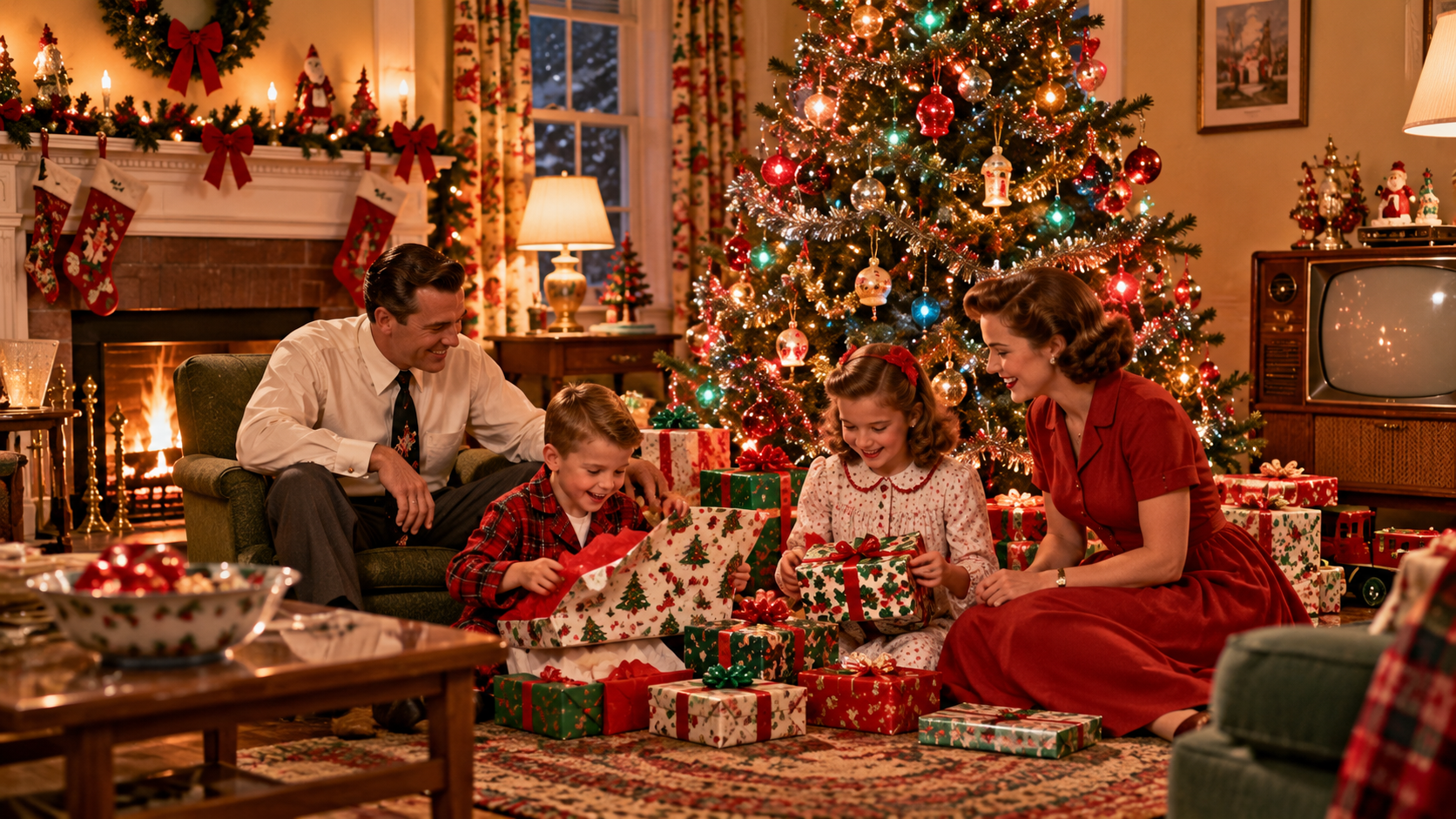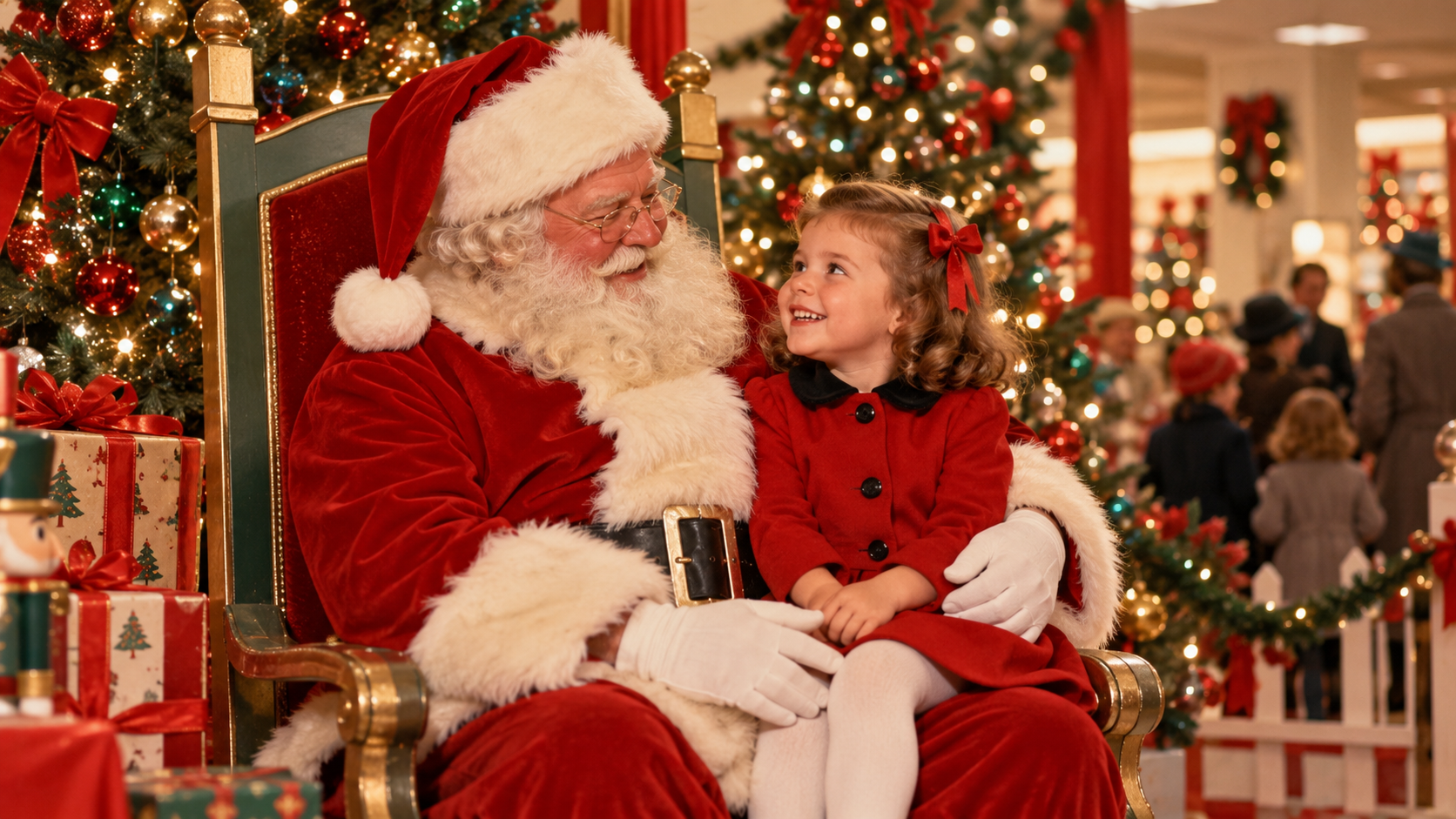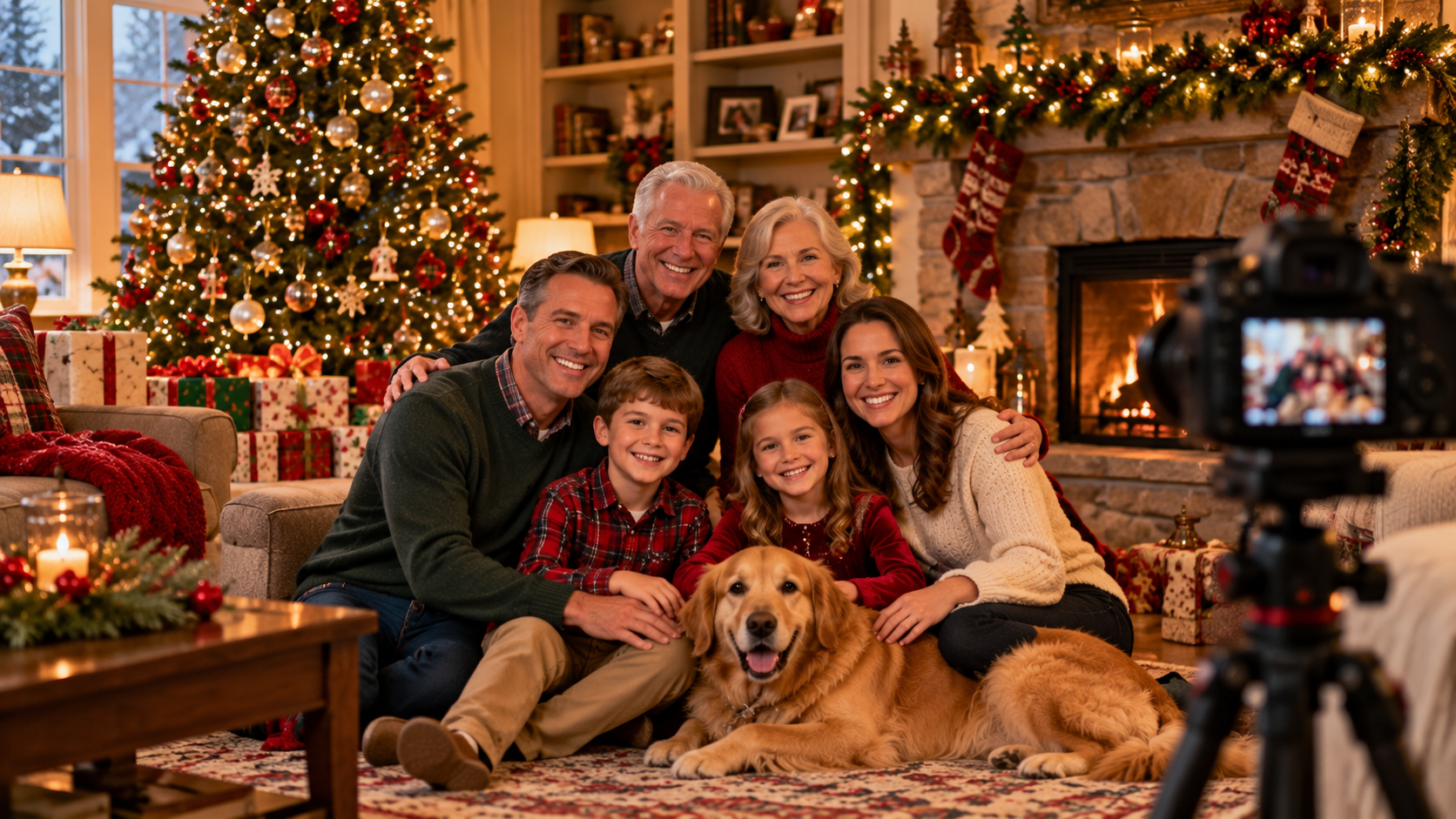
The best Christmas family photographs aren't always the ones with perfect poses, matching outfits and everyone looking directly at the camera.
Often, the pictures families treasure years later are the ones that simply feel like them.
Fortunately, today's phones and cameras make it easier than ever to take a beautiful family picture at home. You don't need an elaborate setup. Good light, a simple background and a few minutes of planning can dramatically improve the result.
Here are some easy ways to give yourself the best chance of getting a Christmas photo worth keeping.
1. Start With Good Light
Lighting makes a bigger difference than almost anything else.
If you're taking the picture during the day, look for a large window that provides soft natural light. Position the family so the window is in front of them or slightly to one side.
Try not to put a bright window directly behind everyone. Your camera may expose for the window and leave faces too dark.
Outdoors, an overcast day can actually be wonderful for family photographs because clouds create soft, even light. On a sunny day, open shade is usually more flattering than direct midday sun.
If you're photographing the family beside the Christmas tree at night, turn on nearby lamps rather than relying only on the tree lights. The tree will still glow, but faces will be easier to see.
2. Keep the Background Simple
Christmas decorations make a beautiful background — until there are so many of them that nobody notices the people.
Before taking the picture, look behind everyone.
Move stray boxes, shopping bags, cords, remote controls and other distractions out of the frame. A decorated tree, fireplace, wreath or simple outdoor setting may be all you need.
The goal isn't to remove Christmas from the picture. It's to let the decorations frame the family rather than compete with them.
3. Coordinate Clothes Without Making Everyone Match
Everyone wearing exactly the same outfit can work, but it isn't necessary.
Instead, choose colors that look good together.
Deep red, burgundy, evergreen, cream, navy and neutral tones all work naturally with Christmas backgrounds. Plaid can add a seasonal touch without requiring the entire family to wear it.
Try to avoid having one person in an extremely bright color or bold pattern that pulls attention away from everyone else.
Most importantly, choose clothes people are comfortable wearing. Someone who feels uncomfortable usually looks uncomfortable too.
4. Bring Everyone Close Together
One of the easiest ways to improve a group photograph is simply to reduce the empty space between people.
Families naturally stand farther apart than they realize when posing for a picture.
Ask everyone to move closer.
Shoulders can overlap slightly. Children can sit in front or between adults. Someone can place an arm around another person.
The closer arrangement makes the photograph feel warmer and also helps the group read visually as a family rather than a collection of separate people.
5. Don't Put Everyone in a Straight Line
Unless you're photographing a very large group, try arranging people at slightly different heights.
Some people can sit while others stand. Children can sit on a parent's lap or on the floor in front. A staircase can work surprisingly well for a larger family.
Think in terms of a loose triangle rather than a horizontal line.
The arrangement usually looks more natural and helps fit everyone comfortably into the frame.
6. Get the Camera at the Right Height
Camera position matters.
For a standing group, placing the camera roughly around chest or eye level usually produces a natural perspective.
If most of the family is sitting, lower the camera with them.
Avoid placing the phone very low and pointing sharply upward. Likewise, an extremely high camera angle can make the picture feel less like a family portrait and more like a selfie.
A small tripod or phone stand makes this much easier and allows the photographer to be part of the picture.
7. Use the Timer — and Take a Lot of Pictures
Don't try to capture the perfect family photograph with a single exposure.
Use your phone or camera's timer and take several pictures of each arrangement.
Someone will blink. Someone will look away. A child will suddenly make a face. The dog will decide this is the exact moment to leave.
That's normal.
Taking several photographs dramatically increases the chance that you'll get one where everyone looks good at the same time.
8. Photograph Children Before They Get Tired
Young children rarely become more cooperative as a photo session gets longer.
If the family picture matters, take it early.
Make sure children aren't hungry or exhausted, and don't spend twenty minutes adjusting every adult before asking the kids to join the photograph.
Keep the process quick and relaxed.
If a child doesn't want to give you a perfect smile, don't force it. A genuine expression is usually better than a strained one.
9. Let the Pets Join In — Carefully
For many families, the Christmas picture wouldn't be complete without the dog or cat.
Pets can also turn a perfectly organized photo session into complete chaos.
Have everyone else in position before bringing the pet into the picture. Keep a favorite treat or toy near the camera to attract attention.
Then work quickly.
If the pet looks at the camera for two seconds, those are probably your two seconds.
10. Take a Few Pictures When Nobody Is Posing
Once you've captured the traditional everyone-looking-at-the-camera photograph, keep shooting.
Ask people to talk to each other. Let the children open an ornament box. Have someone adjust a decoration on the tree. Let everyone laugh after the formal picture is finished.
These in-between moments often produce the photograph that feels most natural.
Years from now, the slightly imperfect picture may bring back the memory of that Christmas better than the perfectly posed one.
11. Leave a Little Room Around the Family
It's tempting to fill the entire frame with people, but leaving some extra space can be useful.
A little room around the group gives you flexibility to crop the photograph later for different formats.
That's especially helpful if you plan to use the picture for a Christmas card, social-media post, framed print — or a creative Christmas picture with Santa.
Just don't leave so much empty space that the family becomes tiny in the photograph.
12. Choose the Picture That Feels Like Your Family
When you're reviewing the photographs, don't automatically choose the one where every technical detail is perfect.
Look at the expressions.
Which picture makes you smile? Which one captures everyone's personality? Which one will remind you what this particular Christmas felt like?
Maybe everyone is looking directly at the camera.
Maybe they aren't.
The best family Christmas photograph isn't necessarily the most perfect photograph.
It's the one you'll be happy to find again twenty years from now.
Choosing a Photo for SitOnSantasLap
A good family portrait and a good input photo overlap, but the generator has a specific job: it creates a new portrait with Santa from a single uploaded image. Start with one to four people, with every face clearly visible. A distant group photograph or a face hidden behind someone else gives the model less information to work with.
Use the original image file when you can, rather than a screenshot of a social-media post. Check the upload preview before generating. If the wrong image appears, select the correct file first.
A Simple Lighting Comparison You Can Make at Home
Take two photographs without changing the people’s positions. In the first, put the bright window behind them. In the second, turn the group so the window lights their faces. Compare the eyes and cheeks in the two originals. Choose the photograph with readable facial detail rather than the one with the brightest background.
If either version is blurred, retake it before uploading; a style choice cannot reliably recover detail that was never captured.
Choose the Style for the Kind of Picture You Want
- Classic Santa Photo: a photographic department-store portrait look.
- Silver Screen Christmas: a black-and-white, classic-movie look.
- 1950s Christmas Card: a painted illustration with a vintage greeting-card feel.
- Christmas Comic: bold outlines and comic-style color.
- Christmas Anime: stylized illustrated faces and an anime look.
- Santa’s Workshop: a photographic fantasy workshop setting.
- Christmas Claymation: sculpted clay characters in a miniature Christmas set.
- Cozy Felt Christmas: fuzzy handmade wool figures and fabric decorations.
- Christmas Snow Globe: miniature figures inside a festive glass globe with falling snow.
These describe the intended styles, not a guarantee that every output will match perfectly. The homepage’s style thumbnails illustrate the look; they are not before-and-after results from your uploaded photograph.
Inspect the Result Before Sharing
Keep the original open for comparison. Check that the right people are present and that faces remain recognizable. Look at glasses, hands, limbs, and clothing, then check for unwanted cropping. Illustrated styles deliberately simplify features; even photographic styles can introduce mistakes.
If an important feature is wrong, try a clearer original rather than treating the first result as finished. Generated Santa pictures are creative images and can change details. They should not be presented as photographs of a real meeting with Santa.
Save the Finished Picture Before Ordering Prints
Use Download Picture on desktop. On supported iPhones and iPads, Save to Photos opens the system sharing controls; choose the option to save the image. If those controls are unavailable, the browser may download or open the picture instead. Check your Photos or Downloads location to confirm you have the file.
For a printed card, preview the saved file in the printer’s actual layout. Make sure the crop retains everyone’s head, leaves room for the greeting, and does not obscure the site mark at the bottom. Order a small proof before a large batch if image detail or color matters. A good screen preview alone does not establish print quality.
More Photography Resources
The generator-specific instructions above reflect this site’s styles and save controls. The following references concern caring for physical photographs; they are not sources for camera settings or claims about AI output quality.